
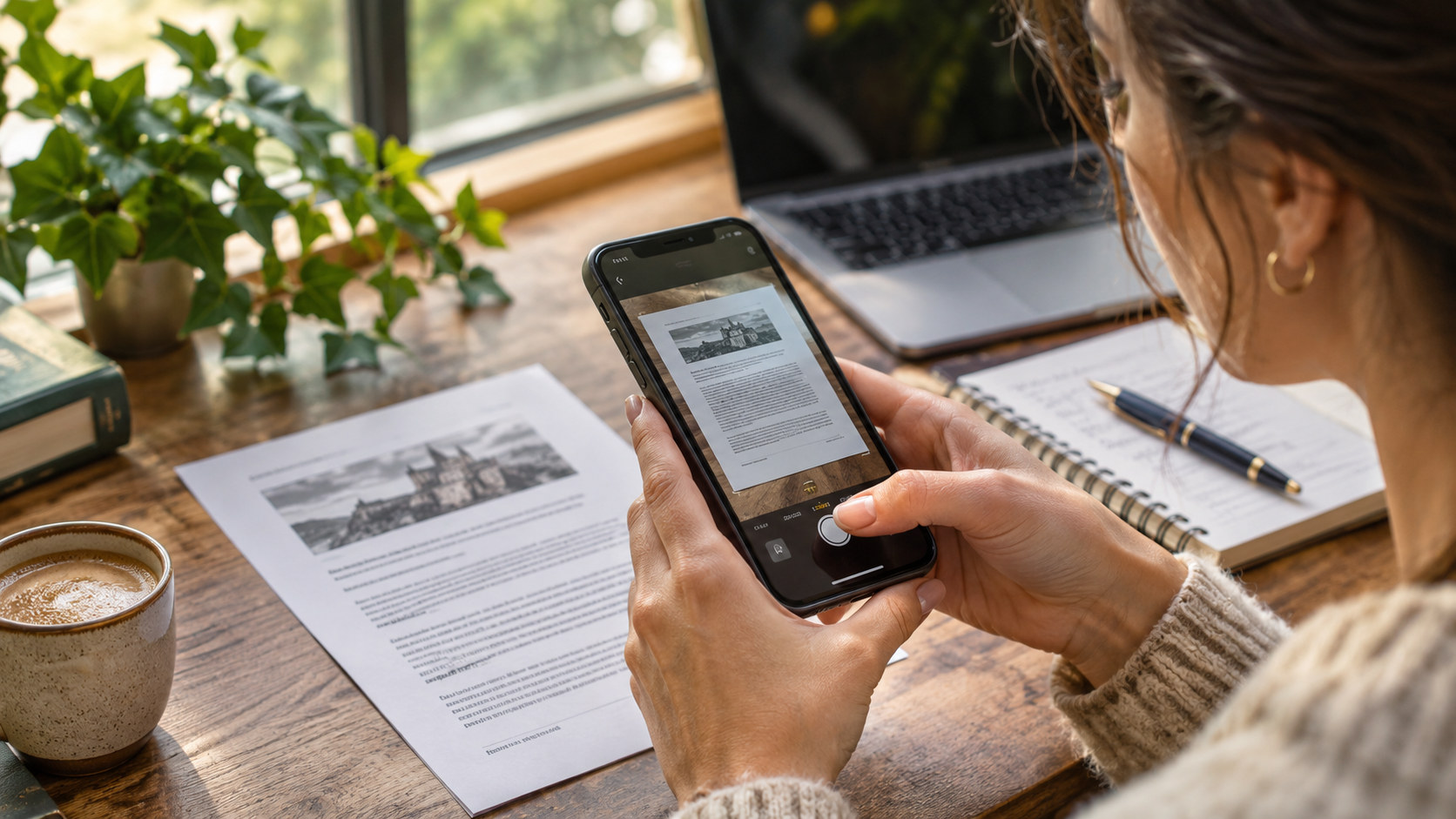
Imagine someone hands you a printed notice. You need the details in an email, but you do not want to retype three paragraphs on your phone. You take a photograph, select the text and paste it into a note. It feels like magic. Until you notice that the meeting time is now 8.00 instead of 6.00, or that a surname has acquired an extra letter. The computer has done most of the work — and created one new task for you: checking it.
The technology is called optical character recognition, or OCR. It turns the shapes of printed or handwritten marks in an image into characters a computer can select and edit. It is built into everyday tools, so you often need neither a scanner nor a specialist app. The trick is choosing a sensible route for the job, taking a readable picture and treating the extracted text as a first draft.
The difference between a picture and text
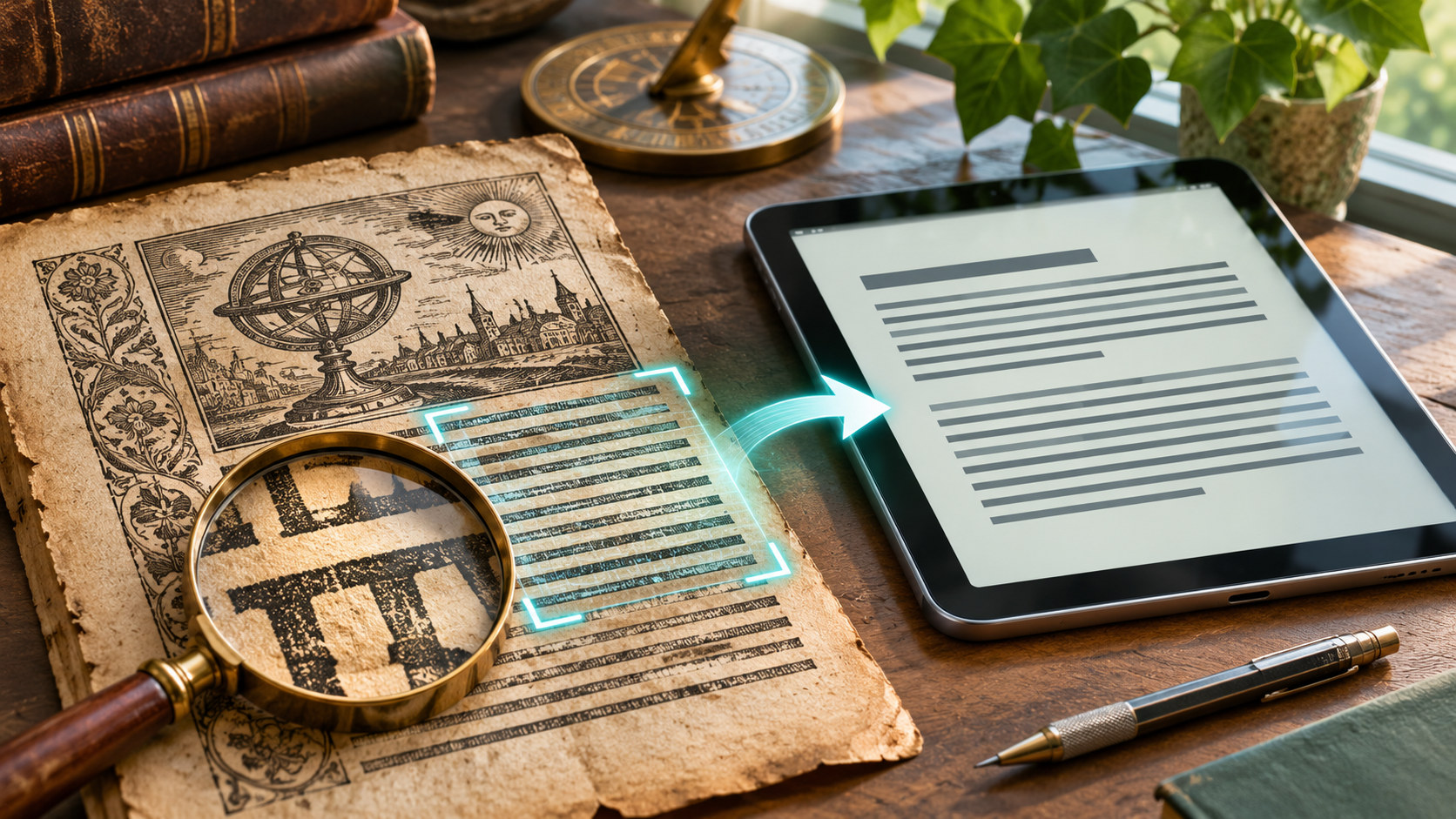
A photograph of a document stores pixels. Even if those pixels clearly show a sentence, a word processor cannot reliably change one word inside the photograph. OCR tries to recognise the letters, spaces, words and, sometimes, the order in which they appear. Its output can be copied into an email, searched, translated or read aloud by assistive software. That is genuinely useful for old notes, printed instructions and a quick quote from a page you are permitted to reproduce.
But recognising characters is not the same as understanding a document. A clean paragraph is relatively easy. Two columns, a table with small figures, a handwritten correction across the margin or an unusual typeface present quite different problems. OCR might correctly recognise every digit in a table while placing the figures under the wrong headings. That is why a polished-looking result can still be misleading.
Start with the photograph, not the software
Before choosing a tool, give it a fair chance. Place the page on a flat surface and photograph it straight from above. Keep the whole relevant passage in the frame. Bright, even light is more helpful than a dramatic shadow; move the page away from glare on glossy paper. A sharp image is usually more valuable than an expensive recognition feature applied to a blurry one.
If the image is sideways, rotate it first. Crop away the table, hands or background that the tool does not need, but keep enough context to understand where the passage came from. For a book, flatten the page gently without damaging the binding. For a notice on a wall, take a second photograph closer to the small print. Two clear photographs are often better than one wide photograph that makes all the letters tiny.
Three practical ways to extract the words
On an iPhone or iPad: Live Text
Open the photograph in Photos. Where Live Text is available, tap the text-recognition control or touch and hold the words, adjust the selection handles and choose Copy. Paste the result into Notes, a document or an email. Apple also supports selecting text directly from the camera view on compatible devices. If the control is missing, check Settings → General → Language & Region → Live Text, along with device, language and software support. This is recognition, not a promise that every photograph or language will work equally well.
On Android: Google Lens
Open the picture in Google Photos and choose Lens (its position can vary with device and app version). Select the text you want and copy it. Some phones offer similar controls from the camera or other Google apps. For a short paragraph, copying a selection is usually quicker than converting a whole page. Google’s own instructions describe the Lens route and note that you can select the words to copy.
On a computer: Google Drive and Docs
For a longer image or a PDF containing photographed pages, Google Drive offers a different workflow. Upload the file, right-click it and choose Open with → Google Docs. Docs attempts to extract the text into an editable document. Google’s help page advises small, correctly oriented files and readable characters; its current guidance specifies 2 MB or smaller and warns that layout may not transfer fully. Do not assume the recreated tables, footnotes or columns will match the original. This route also means uploading the file to a cloud service, which matters if it is private.
The five places I would check first
A useful review starts with the items that matter most, rather than reading every letter at the same speed. Numbers come first: 3, 8, 0, decimal points, prices, percentages, times and reference codes. Next come names and email addresses, where a single changed character can send a message to the wrong person. Third are dates, especially where the original uses a different day/month order. Fourth are headings and columns: make sure a figure still belongs to the right row and heading. Fifth are negatives and small qualifiers — a missed “not”, “except” or “up to” can reverse the meaning.
This is also where you should distrust automatic tidying. Some tools repair punctuation or rearrange lines to make the result more fluent. That may help an informal note but is unwelcome when you need an accurate quotation or a faithful transcription. Keep the original image alongside the text until you have finished checking. If something looks too neat, zoom into that part of the photograph and compare it directly.
A quick exercise you can test today
Take a photo of a non-sensitive printed page. Choose a passage containing one number, one date and one proper name. Copy it using your phone, then paste it into a note. Read the original and the pasted copy side by side. Highlight every difference, including line breaks that might change the meaning. Correct the text yourself. Now repeat with a clearer photograph. The point is not to achieve a perfect machine score: it is to discover which kinds of errors occur in your own everyday material.
For a table, take the same exercise one step further. Ask yourself whether the table should remain a table at all. If the relationship between headings and figures is important, manually reconstruct the columns or use a tool intended for structured data. A block of copied lines is not proof that the structure survived. For a multi-page contract or an invoice, a separate visual check of totals, page order, signatures and annexes is still needed.
What about handwriting, translation and AI?
Printed text with ordinary fonts is generally the easiest starting point. Handwriting varies between people and even between lines on the same page; decorative lettering, faded ink and folds add difficulty. Multilingual pages may also confuse language detection. Translation is a separate step after recognition: an app might read a word correctly and still translate the sentence poorly. If the meaning matters, check both the transcription and the translation.
You can ask a generative AI assistant to format extracted text or explain a difficult paragraph, but do not let it silently rewrite the source. For factual transcription, ask it to preserve the words exactly and mark unreadable passages instead of guessing. Even then, compare with the photograph yourself. A convincing summary cannot confirm that the numbers were copied correctly.
Privacy, permission and the original page
Check what you are scanning and where it will go. A worksheet you created is not the same as a passport, medical letter, bank statement or confidential work document. A cloud-based converter necessarily handles uploaded content on its service; features that run locally may have different data flows. Read the tool’s current privacy explanation before sharing sensitive material, and follow your workplace or organisation’s rules. Do not upload other people’s private information just because OCR makes it easy.
Remember copyright and permissions too. Being able to extract text does not give you the right to publish a book chapter or paid document. For personal notes, a short quotation or an accessible copy, the legal and practical situation may differ; check the rules relevant to the material you use.
The useful habit to keep
Think of OCR as a fast typist, not a careful proofreader. Let the device save you the mechanical work, then spend your attention where a mistake would matter. Start with a sharp photograph, use the simplest suitable tool, preserve the original and compare the risky details. The outcome is more than editable text: it is a document you can actually trust enough to use.
Sources & further reading
- Apple Support — Live Text on iPhone
- Google Photos Help — Copy text with Google Lens
- Google Drive Help — Convert PDF and photo files to text
Original editorial content. AI tools assisted with research, writing, editing, translation and illustrations. Future Uncovered remains responsible for the published material. The illustrations are AI-generated editorial visualisations, not documentary photographs.